
Your family page, explained
Everything on Your family, card by card. Every card also has a small What is this? that explains it in place.
Rather see it on your own page? A short walkthrough points at each part, one step at a time. Walk me through it
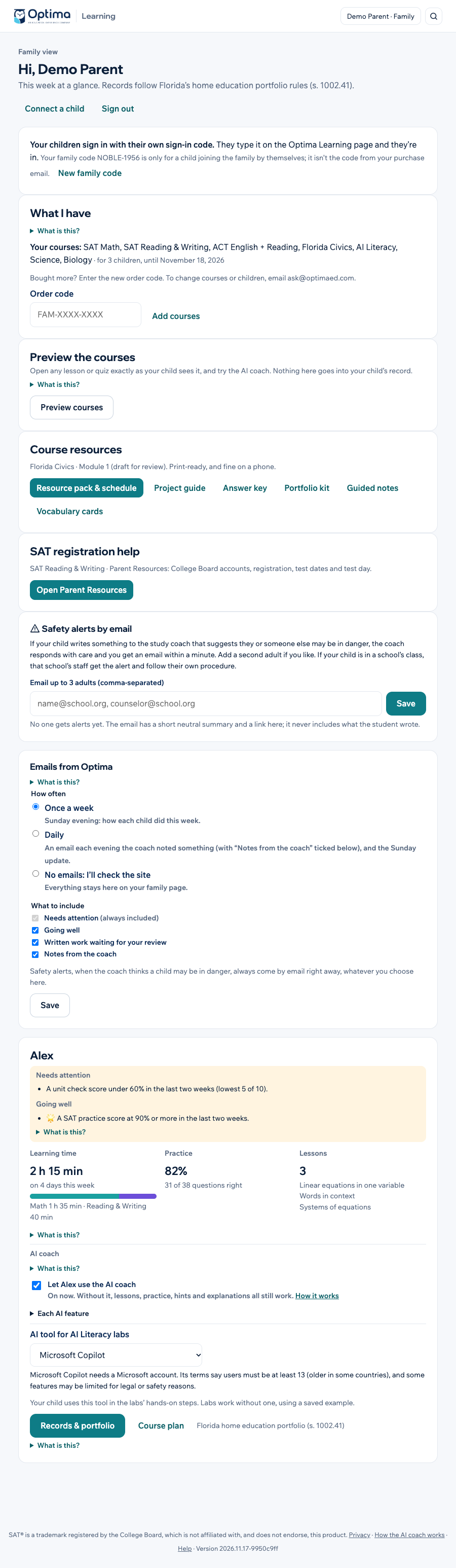
Card by card
Safety alerts are separate from all of this: if your child writes something to the coach that suggests they or someone else may be in danger, you get an email right away, whatever your email choices.
Records for your ESA and home education
- Open Records & portfolio for a child to see their learning log (dates, subjects and minutes), reading list, work samples and the standards they've worked on. You can print it or save it as a PDF.
- To share records with an evaluator, create a link from the same page. It works for the number of days you choose, and you can turn it off at any time.
AI on and off
On your family page, Let your child use the AI coach turns every AI feature on or off at once. Under it, Each AI feature turns one feature off at a time:
- Coach chat: chatting with the AI coach about a lesson or question, “Ask about this card”, talking a topic through, and the coach remembering past chats.
- Hints and help from the coach: the coach’s hints after a wrong answer, stepping in when your child is stuck, extra help cards, and “Show your thinking”. The course’s own hints and explanations always stay.
- Feedback on writing: AI feedback on discussions, Explain it scores, and the review of a question your child writes. Without it, your child still writes the answer, and you or their teacher read and score it.
- Personalized examples and Getting to know you: examples set in your child’s interests, investigation setup, and the getting-to-know-you chat. Without it, your child sees the course’s original examples and a short setup form.
- Talk with historical figures: short conversations with a figure from a Civics lesson. The lesson is complete without it.
- AI in the Go to bar: when typing a place doesn’t match, AI picks the closest one. Places still open by name without it.
- Voice: talking to the coach out loud and voice commands. Reading aloud (“Listen”) is not AI and works either way.
Every lesson, quiz, practice set, lab, discussion, escape room and mission works without AI. Your child can finish all of it and earn the same credit; the AI features only change how help and feedback arrive. If your child is in a school class, the teacher can also turn features off for the class, and whichever is off stays off.
Coaches your child can choose. Under the AI switches, every coach character has a tick. Untick any you don’t want your child to see, or press Only the animal and robot characters. Your child is offered only the characters left on. Opti, the owl, always stays. If your child’s coach is turned off, it becomes Opti and your child is told they can pick a new one; their conversations and progress stay the same. A teacher can turn characters off for a class too, and a character off in either place is off. Historical figures, such as Benjamin Franklin in Civics, have their own switch, Talk with historical figures, and turning the AI coach off turns them off too.
Changes and leaving
- To change courses or add a child beyond your order, email us (below). Changes are made by our staff.
- To delete a child's information, or your whole family's, choose Request deletion on your family page or email us. We complete it within 10 business days, including the AI coach record.
Contact us
Email ask@optimaed.com for help or changes to your order. For privacy and deletion requests, email optimalabs@optimaed.com. We never ask for your password, and our emails never ask you to sign in through a link you didn't expect.